New content will be posted at: http://cristianadam.eu!
2015-05-10
2015-01-17
Lenovo Fn-Ctrl Swap
Lenovo laptop keyboards have always had the Fn key as the left most key on the keyboard, like this:
 If you are a full touch typist (or simply got used with an external computer keyboard) you would expect Ctrl to be the left most key on the keyboard. And this Fn and Ctrl key swap would drive you crazy.
I used to have a Lenovo W510, which had a bios option to swap Fn and Ctrl keys.
Recently I've got a Lenovo SL500, an older, consumer Lenovo model, which with an SSD drive does its job just fine :) The problem with the SL500 is that it doesn't have the Fn and Ctrl key swap in bios!
The good news is that some people have hacked the Lenovo bios files and swapped the bytes for Fn and Ctrl keys. The hacked bios files can be downloaded from here: FN-CTRL swap on all Lenovo laptops.
The problem is that when you run WINUPTP.EXE you (might) get an error message like this:

Bummer.
Lenovo provides also an ISO image with the firmware update. Probably with a DOS update utility.
The bad news was that this ISO image was "special". If you burned it to a disk no files were present. If you tried to open it with 7-zip you would get just a Bootable_HardDisk.img file with was 512 bytes in size.
Since we know there must be a DOS firmware utility involved, the ISO file must be in an old DOS format. IsoBuster (one can download an evaluation copy) confirmed this:
The bios file is – $0a6a000.fl1, which was also present in the Windows bios update package. Also worth mentioning the PCDOS_JP label, which points to IBM PC DOS instead of MS DOS. This makes sense since Lenovo used to be part of IBM.
From the first image we can see that NERO Burning Rom was used to create the ISO file. Since I don't have access to NERO Burning Rom I needed something else.
ISO format is not compressed, which means that all the files are somewhere in the ISO file. Since I had the original $0a6a000.fl1 and the modified version all I needed was a program which would search and replace the content of the $0a6a000.fl1 file.
I googled a bit after such an utility, no luck, then decided to roll my own program.
Below is the C++ source code for my breplace program. You can get x64 binaries for Linux, macOS and Windows from GitHub. The "magic" function in this program is std::search which finds the position of the $0a6a00.fl1 fle in the ISO file.
Then I ran the tool as breplace.exe 6auj19uc.iso $0A6A000.FL1 $0A6A000.FL1_new 6auj19uc_fn_ctrl_swap.iso. In order to be sure that things are as they should be I did a file comparison between the two ISO files using Total Commander:

Things looked "legit" thus decided to burn the new ISO image to a disk and proceed with the bios update.
Everything worked just fine. Now the Lenovo SL500 has the Fn and Ctrl keys swapped! w00t!
Before you decide to flash your Lenovo laptop double check the bios / ISO files. This can brick your laptop!
I used to have a Lenovo W510, which had a bios option to swap Fn and Ctrl keys.
Recently I've got a Lenovo SL500, an older, consumer Lenovo model, which with an SSD drive does its job just fine :) The problem with the SL500 is that it doesn't have the Fn and Ctrl key swap in bios!
The good news is that some people have hacked the Lenovo bios files and swapped the bytes for Fn and Ctrl keys. The hacked bios files can be downloaded from here: FN-CTRL swap on all Lenovo laptops.
The problem is that when you run WINUPTP.EXE you (might) get an error message like this:
Bummer.
Lenovo provides also an ISO image with the firmware update. Probably with a DOS update utility.
The bad news was that this ISO image was "special". If you burned it to a disk no files were present. If you tried to open it with 7-zip you would get just a Bootable_HardDisk.img file with was 512 bytes in size.
Since we know there must be a DOS firmware utility involved, the ISO file must be in an old DOS format. IsoBuster (one can download an evaluation copy) confirmed this:
 |
 |
 |
|
The bios file is – $0a6a000.fl1, which was also present in the Windows bios update package. Also worth mentioning the PCDOS_JP label, which points to IBM PC DOS instead of MS DOS. This makes sense since Lenovo used to be part of IBM.
From the first image we can see that NERO Burning Rom was used to create the ISO file. Since I don't have access to NERO Burning Rom I needed something else.
ISO format is not compressed, which means that all the files are somewhere in the ISO file. Since I had the original $0a6a000.fl1 and the modified version all I needed was a program which would search and replace the content of the $0a6a000.fl1 file.
I googled a bit after such an utility, no luck, then decided to roll my own program.
Below is the C++ source code for my breplace program. You can get x64 binaries for Linux, macOS and Windows from GitHub. The "magic" function in this program is std::search which finds the position of the $0a6a00.fl1 fle in the ISO file.
#include <vector>
#include <iostream>
#include <fstream>
#include <algorithm>
#include <string>

size_t readFileToVector(std::istream& file, std::vector<char>& buf)
{
     file.seekg(0, std::ios_base::end);
     size_t size = file.tellg();
     file.seekg(0, std::ios_base::beg);

     buf.resize(size);
     file.read(&buf[0], size);

     return size;
}

int main(int argc, char** argv)
{
     std::vector<std::string> arguments(argv, argv + argc);
     if (arguments.size() != 5)
     {
         std::cout << "usage: breplace <file_container> <file_to_be_replaced>";
         std::cout << "<file_to_replace> <dest_file_container>" << std::endl;
         return 1;
     }

     std::vector<char> container;
     std::ifstream containerFile;
     containerFile.open(arguments[1], std::ios_base::binary | std::ios_base::in);
     size_t containerSize = readFileToVector(containerFile, container);

     std::vector<char> toBeReplaced;
     std::ifstream toBeReplacedFile;
     toBeReplacedFile.open(arguments[2], std::ios_base::binary | std::ios_base::in);
     size_t fileSize = readFileToVector(toBeReplacedFile, toBeReplaced);

     std::vector<char> toReplace;
     std::ifstream toReplaceFile;
     toReplaceFile.open(arguments[3], std::ios_base::binary | std::ios_base::in);
     readFileToVector(toReplaceFile, toReplace);

     std::vector<char> destination;
     std::ofstream destinationFile;
     destinationFile.open(arguments[4], std::ios_base::binary | std::ios_base::out);

     std::vector<char>::iterator itpos = std::search(
         container.begin(), container.end(), toBeReplaced.begin(), toBeReplaced.end());

     if (itpos == container.end())
     {
         std::cout << "File's content " << arguments[2] << " was not found" << std::endl;
         return 1;
     }

     size_t beforeFileSize = std::distance(container.begin(), itpos);
     std::cout << "File's content " << arguments[2] << " found at position: ";
     std::cout << beforeFileSize << std::endl;

     destination.resize(containerSize);
     std::copy(container.begin(), container.begin() + beforeFileSize, destination.begin());
     std::copy(toReplace.begin(), toReplace.end(), destination.begin() + beforeFileSize);
     std::copy(container.begin() + beforeFileSize + fileSize, container.end(),
               destination.begin() + beforeFileSize + fileSize);

     destinationFile.write(&destination[0], containerSize);

     return 0;
}
Then I ran the tool as breplace.exe 6auj19uc.iso $0A6A000.FL1 $0A6A000.FL1_new 6auj19uc_fn_ctrl_swap.iso. In order to be sure that things are as they should be I did a file comparison between the two ISO files using Total Commander:
Things looked "legit" thus decided to burn the new ISO image to a disk and proceed with the bios update.
Everything worked just fine. Now the Lenovo SL500 has the Fn and Ctrl keys swapped! w00t!
Before you decide to flash your Lenovo laptop double check the bios / ISO files. This can brick your laptop!
2015-01-06
(ro) Diacriticele, internetul și Unicode
Pentru a publica texte în limba română pe internet știm că trebuie să folosim „Unicode”. Conform Wikipedia „Unicode (pronunțat în engleză /ˈjuːnɪˌkəʊd/) este un format definit de către Unicode Consortium pentru codarea, stocarea și interpretarea textelor pe suporturi informatice”.
Fiecare caracter, simbol are un număr de „ordine”. Mai jos avem numerele de ordine ale caracterelor specifice limbii române:
Fiecare caracter, simbol are un număr de „ordine”. Mai jos avem numerele de ordine ale caracterelor specifice limbii române:
- ă - litera latină mică a cu breve - U+0103
- Ă - litera latină mare A cu breve - U+0102
- â - litera latină mică a cu accent circumflex - U+00E2
- Â - litera latină mare A cu accent circumflex - U+00C2
- î - litera latină mică i cu accent circumflex - U+00EE
- Î - litera latină mare I cu accent circumflex - U+00CE
- ș - litera latină mică s cu virgula dedesubt - U+0219
- Ș - litera latină mare S cu virgulă dedesubt - U+0218
- ț - litera latină mică t cu virgulă dedesubt - U+021B
- Ț - litera latină mare T cu virgulă dedesubt - U+021A
- „ - ghilimele stânga jos (dublu 9 jos) - U+201E
- ” - ghilimele dreapta sus (dublu 9 sus) - U+201D
- « - ghilimele ascuțite stânga - U+00AB
- » - ghilimele ascuțite dreapta - U+00BB
- – - linia de dialog (en dash) - U+2013
În trecutul apropiat au existat sisteme de operare care au avut familii de fonturi care nu conțineau ș și ț cu virgulă. Browserele afișau pătrățele, sau literele arătau diferit deoarece alt font a fost folosit pentru afișaj.
Pentru a combate această problemă există mai multe soluții:
Firefox și Internet Explorer afișează ă, ș și ț bizar, ca și cum breve-le și virgula ar fi după ă, ș și ț!
După un pic de muncă de investigație am aflat de simbolurile diacritice combinatorii din cadrul Unicode - Combining Diacritical Marks (U+0300 – U+036F).
Astfel putem avea combinațiile (literele din stânga sunt combinații):
Pagina de la Kmkz se vede aiurea deoarece fonturile generate de Font Squirrel nu includ diacriticele combinatorii (U+0300 – U+036F). Putem verifica asta la Glypviewer și apoi introducând http://www.kmkz.ro/wp-content/themes/kmkz_v3/fonts/frutiger/frutigerroce-roman-webfont.woff la „Remote URL”.
Font Squirrel poate fi configurat să includă diacriticele combinatorii astfel:

Google Fonts nu exportă diacriticele combinatorii. Dacă vreți să folosiți un font de acolo, descărcați-l ca ttf/otf și apoi transformați-l cu Font Squirrel.
Google Chrome 39 ar fi trebuit să fi afișat pagina aiurea, dar dintr-un motiv sau altul afișează pagina corect.
La fileformat.info am aflat de exemplu că ț-ul a fost introdus în Unicode în versiunea 3.0.0 din Septembrie 1999, pe când virgula a fost introdusă în Unicode în versiunea 1.1.0 din Iunie 1993! Tot în versiunea 1.1.0 a fost introdus și ţ-ul cu sedilă.
Am decis să testez un Windows XP fără fonturi actualizate să văd cum afișează Internet Explorer 6.0 o pagină de test (vezi codul sursă la pastebin.com/tuavSbY4):
Se poate observa că problema diacriticelor lipsă nu ar fi fost rezolvată cu fonturile care nu au ș și ț cu virgulă (Tahoma fiind printre puținele familii de fonturi care vine cu ș și ț pe Windows XP). Dar avem o îmbunătățire, putem vedea caracterul de bază și nu doar un pătrățel :)
Ca fapt divers, pagina de test arată „interesant” în poza de previzualizare a serviciului de scurtare de linkuri goo.gl:

În articolul Aranjamente de tastatură românească am pus la dispoziție trei pachete de instalare pentru tastaturile românești folosite în lumea Windows.
Mai jos aveți aceleași trei pachete de instalare, dar de data aceasta literele (ăĂîÎșȘțȚ) sunt generate folosit diacriticele combinatorii:
*Aranjamentul „Română (Moștenit)” vine cu unele îmbunătățiri, pentr
u a afla mai multe vezi articolul de mai sus.
Nu știu ce software au folosit cei de la Kmkz pentru a produce textele cu diacriticele combinate, dar acum se poate face același lucru folosind Windows!
Nu recomand folosirea diacriticelor combinate, dar este bine să știm despre existența lor :)
P.S.
Cristiana Cobliș a menționat caracterul util al diacritcelor combinate în contextul fonturilor care nu conțin diacriticele directe. Google Fonts conține multe fonturi care nu conțin diacriticele directe, mai ales ț-ul.
Am reușit să găsesc un font care îndeplinește această condiție: Righteous. Mai jos avem o captură de ecran cu Google Chrome 39 și fontul Righteous:

Din păcate doar Google Chrome randează pagina corect. Mozila Firefox 34 sau Internet Explorer 11 au probleme.
Este mult mai simplu să facem browserele să afișeze corect diacriticele combinate decât să convingem toți autorii de fonturi să adauge literele lipsă, în special ț-ul :)
Pentru a combate această problemă există mai multe soluții:
- nu se folosesc diacritice. Soluție nerecomandată, dar răspândită ajutată de comoditatea celor care scriu astfel de texte. hotnews.ro WTF ?!
- se folosesc ş și ţ cu sedilă în loc de ș și ț cu virgulă. Soluție nerecomandată, foarte răspândită ajutată de aranjamentul moștenit de la Microsoft și de soluția „Română cu Alt Dreapta” de la diacritice.ro.
- se folosesc ș și ț cu virgulă împreună cu un cod javascript care adaptează pagina în funcție de sistemul de operare. Soluție recomandată. Wikipedia în limba română folosește această tehnică.
- se folosesc ș și ț cu virgulă împreună cu un font specific (@font-face). Soluție recomandată. kmkz.ro folosește familiile de fonturi Futura și Frutiger, catavencii.ro folosește familia de fonturi Open Sans, ș.a.m.d.
Ultima soluție mi se pare cea mai elegantă. Pagina web va arată la fel pe toate sistemele de operare și există multe familii de fonturi pe care le putem folosi de la Google Fonts (avut grijă la „Latin Extended”) sau să le avem generate de către Font Squirrel și să le avem local pe server.
kmkz.ro au ales varianta sigură și au generat fonturile cu Font Squirrel și le-au pus pe server. Dar din când în când au articole care arată bizar. Mai jos am pus capturi de ecran cu această bizarerie:
| Mozilla Firefox 34 (bug #1128330) |
 |
| Internet Explorer 11 (bug #1111623) |
 |
| Google Chrome 39 |  |
Firefox și Internet Explorer afișează ă, ș și ț bizar, ca și cum breve-le și virgula ar fi după ă, ș și ț!
După un pic de muncă de investigație am aflat de simbolurile diacritice combinatorii din cadrul Unicode - Combining Diacritical Marks (U+0300 – U+036F).
Astfel putem avea combinațiile (literele din stânga sunt combinații):
- ă - litera latină mică a și breve-ul - U+0061 și U+0306
- Ă - litera latină mare A și breve-ul - U+0041 și U+0306
- â - litera latină mică a și accentul circumflex - U+0061 și U+0302
- Â - litera latină mare A și accentul circumflex - U+0041 și U+0302
- î - litera latină mică i și accentul circumflex - U+0069 și U+0302
- Î - litera latină mare I și accentul circumflex - U+0049 și U+0302
- ș - litera latină mică s și virgula dedesubt - U+0073 și U+0326
- Ș - litera latină mare S și virgula dedesubt - U+0053 și U+0326
- ț - litera latină mică t și virgula dedesubt - U+0074 și U+0326
- Ț - litera latină mare T și virgula dedesubt - U+0054 și U+0326
Pagina de la Kmkz se vede aiurea deoarece fonturile generate de Font Squirrel nu includ diacriticele combinatorii (U+0300 – U+036F). Putem verifica asta la Glypviewer și apoi introducând http://www.kmkz.ro/wp-content/themes/kmkz_v3/fonts/frutiger/frutigerroce-roman-webfont.woff la „Remote URL”.
Font Squirrel poate fi configurat să includă diacriticele combinatorii astfel:
Google Fonts nu exportă diacriticele combinatorii. Dacă vreți să folosiți un font de acolo, descărcați-l ca ttf/otf și apoi transformați-l cu Font Squirrel.
Google Chrome 39 ar fi trebuit să fi afișat pagina aiurea, dar dintr-un motiv sau altul afișează pagina corect.
La fileformat.info am aflat de exemplu că ț-ul a fost introdus în Unicode în versiunea 3.0.0 din Septembrie 1999, pe când virgula a fost introdusă în Unicode în versiunea 1.1.0 din Iunie 1993! Tot în versiunea 1.1.0 a fost introdus și ţ-ul cu sedilă.
Am decis să testez un Windows XP fără fonturi actualizate să văd cum afișează Internet Explorer 6.0 o pagină de test (vezi codul sursă la pastebin.com/tuavSbY4):
| Familia de fonturi Arial |  |
| Familia de fonturi Tahoma |  |
Se poate observa că problema diacriticelor lipsă nu ar fi fost rezolvată cu fonturile care nu au ș și ț cu virgulă (Tahoma fiind printre puținele familii de fonturi care vine cu ș și ț pe Windows XP). Dar avem o îmbunătățire, putem vedea caracterul de bază și nu doar un pătrățel :)
Ca fapt divers, pagina de test arată „interesant” în poza de previzualizare a serviciului de scurtare de linkuri goo.gl:
În articolul Aranjamente de tastatură românească am pus la dispoziție trei pachete de instalare pentru tastaturile românești folosite în lumea Windows.
Mai jos aveți aceleași trei pachete de instalare, dar de data aceasta literele (ăĂîÎșȘțȚ) sunt generate folosit diacriticele combinatorii:
- Română (Standard) – aranjamentul „primar” din SR-13392:2004
- Română (Programatori) – aranjamentul „secundar” din SR-13392:2004
- Română (Moștenit)* – aranjamentul „moștenit” de la Microsoft
*Aranjamentul „Română (Moștenit)” vine cu unele îmbunătățiri, pentr
u a afla mai multe vezi articolul de mai sus.
Nu știu ce software au folosit cei de la Kmkz pentru a produce textele cu diacriticele combinate, dar acum se poate face același lucru folosind Windows!
Nu recomand folosirea diacriticelor combinate, dar este bine să știm despre existența lor :)
P.S.
Cristiana Cobliș a menționat caracterul util al diacritcelor combinate în contextul fonturilor care nu conțin diacriticele directe. Google Fonts conține multe fonturi care nu conțin diacriticele directe, mai ales ț-ul.
Am reușit să găsesc un font care îndeplinește această condiție: Righteous. Mai jos avem o captură de ecran cu Google Chrome 39 și fontul Righteous:
Din păcate doar Google Chrome randează pagina corect. Mozila Firefox 34 sau Internet Explorer 11 au probleme.
Este mult mai simplu să facem browserele să afișeze corect diacriticele combinate decât să convingem toți autorii de fonturi să adauge literele lipsă, în special ț-ul :)
2014-11-14
Thank you Google!
This is my third "Thank you Google!" article. In the first two articles I've thanked Google for fixing the Droid and then the Roboto font families.
This time I'm thanking Google for adding a dictionary for the Romanian keyboard in Android thus enabling gesture typing. I remember seeing gesture typing fist on the Swype keyboard.
I've noticed this feature on my Nexus 5 with the arrival of Android 4.4.4 update.
Last week I've updated my HP TouchPad to Android 4.4 (CyanogenMod 11) and took a screen shot of "Google Keyboard". I've pointed out the elephant in the picture.

Gesture typing makes typing correct Romanian fast and enjoyable! Note that the keyboard has some quirks, which I've reported here: #35339.
Here is a recording of me gesture typing the Romanian Pangram:
Microsoft has added to Windows Phone 8.1 gesture typing and the call it shape writing or Word Flow. As it turns out, Word Flow is supported only for the following languages:
Hats off to Google! Shame on you Microsoft!
P.S. Recently I've learned that Google Keyboard is not available everywhere. For example you will not find Google Keyboard on Play Store in Germany and if you search it in the browser and then open the link you will get this nice image (Tested on a Moto X bought in Germany):

It's not only music and videos that Google blocks in Germany, it's also apps!
This time I'm thanking Google for adding a dictionary for the Romanian keyboard in Android thus enabling gesture typing. I remember seeing gesture typing fist on the Swype keyboard.
I've noticed this feature on my Nexus 5 with the arrival of Android 4.4.4 update.
Last week I've updated my HP TouchPad to Android 4.4 (CyanogenMod 11) and took a screen shot of "Google Keyboard". I've pointed out the elephant in the picture.

Gesture typing makes typing correct Romanian fast and enjoyable! Note that the keyboard has some quirks, which I've reported here: #35339.
Here is a recording of me gesture typing the Romanian Pangram:
Microsoft has added to Windows Phone 8.1 gesture typing and the call it shape writing or Word Flow. As it turns out, Word Flow is supported only for the following languages:
Arabic, Dutch, English (UK and US), Finnish, French, German, Italian, Polish, Portuguese (Brazil), Russian, Spanish (Mexico and Spain), Turkish, Ukrainian.It seems Windows Phone keyboard needs more than a dictionary (it does come with a Romanian dictionary) to enable gesture typing. I've made a suggestion to Microsoft to add WordFlow support to Romanian language in Windows Phone. Vote if you want it :)
Hats off to Google! Shame on you Microsoft!
P.S. Recently I've learned that Google Keyboard is not available everywhere. For example you will not find Google Keyboard on Play Store in Germany and if you search it in the browser and then open the link you will get this nice image (Tested on a Moto X bought in Germany):
It's not only music and videos that Google blocks in Germany, it's also apps!
2014-06-20
Qt Creator - Help is on the way
Visual Studio starting from version 2002 to 2008 had a poor help experience. Hitting F1 in Visual Studio resulted soon in me cursing while looking at the help window's progress bar. Unlike Visual Studio 6 which had a very responsive help system.
I remember looking with Process Explorer to see what's going under the hood and it was very surprising to see the C# compiler running...
To overcome this waiting I would open up a web browser and search online. This habit stuck. The web search engine become my best friend.
Visual Studio 2010 has fixed the help system (some local web server technology if I remember correctly), but I haven't spent much time with it so that I would go back at pressing F1 for help.
For the past three years I've been using Qt Creator and I was happy with my work flow: code editing, debugging with Qt Creator and online web search for help.
Therefore I found myself hacking a project using Qt and Qt Creator and searching online after QBrush, QPainter documentation.
If you search online after QBrush you will most probably (at this moment in time using google) get this: qt-project.org/doc/qt-4.8/qbrush.html I would then click on the link and change it to qt-project.org/doc/qt-5.3/qbrush.html. This became annoying after a while.
Now I know that Qt Creator already comes with the most up to date Qt documentation (depending of course if you have the most up to date Qt installed).
But I would have not realized this if my work colleague Miika Järvinen wouldn't have mentioned a small project of his.
His small project involved having the awesome cppreference.com offline C++ documentation available in Qt Creator. Now cppreference has a qch file compiled, but it only shows the main index page when using F1 or searching with "?". If you navigate to the help panel you get an annoying endless "waiting" cursor.
Miika noticed that the qch file was broken due to invalid paths and he compiled a fixed version, which you can get it from here. The endless "waiting" cursor is still present though.
Below you have an example how to use the awesome Qt Creator help system with the equally awesome offline documentation from cppreference.com:
Now I could be "helped" by Qt Creator and not by the online web search!
Imagine the productivity kick you can get if you have the browser window closed, or code offline for that matter :)
I remember looking with Process Explorer to see what's going under the hood and it was very surprising to see the C# compiler running...
To overcome this waiting I would open up a web browser and search online. This habit stuck. The web search engine become my best friend.
Visual Studio 2010 has fixed the help system (some local web server technology if I remember correctly), but I haven't spent much time with it so that I would go back at pressing F1 for help.
For the past three years I've been using Qt Creator and I was happy with my work flow: code editing, debugging with Qt Creator and online web search for help.
Therefore I found myself hacking a project using Qt and Qt Creator and searching online after QBrush, QPainter documentation.
If you search online after QBrush you will most probably (at this moment in time using google) get this: qt-project.org/doc/qt-4.8/qbrush.html I would then click on the link and change it to qt-project.org/doc/qt-5.3/qbrush.html. This became annoying after a while.
Now I know that Qt Creator already comes with the most up to date Qt documentation (depending of course if you have the most up to date Qt installed).
But I would have not realized this if my work colleague Miika Järvinen wouldn't have mentioned a small project of his.
His small project involved having the awesome cppreference.com offline C++ documentation available in Qt Creator. Now cppreference has a qch file compiled, but it only shows the main index page when using F1 or searching with "?". If you navigate to the help panel you get an annoying endless "waiting" cursor.
Miika noticed that the qch file was broken due to invalid paths and he compiled a fixed version, which you can get it from here. The endless "waiting" cursor is still present though.
Below you have an example how to use the awesome Qt Creator help system with the equally awesome offline documentation from cppreference.com:
 | |
| Qt Creator 3.1 on Kubuntu 14.04 |
Imagine the productivity kick you can get if you have the browser window closed, or code offline for that matter :)
2014-03-02
Debugging QNX applications using Qt Creator
According to Wikipedia QNX is: "QNX is a commercial Unix-like real-time operating system, aimed primarily at the embedded systems market".
One could get an evaluation copy of QNX 6.5.0SP1 and have a virtual machine running the x86 version of QNX 6.5.0SP1. QNX comes with an Eclipse based IDE, which is nice and all but I'm interested in QtCreator :)
Ed Langley has a very nice blog entry named - Setting up a QNX image for use with Qt Creator.
Qt Creator needs SSH communication with the QNX target, in my case a virtual machine. Ed Langley's blog entry has details on how to get this up and running.
I've created a "hello world" C++ project. In order to have Qt Creator deploy this hello world application one needs to add the following lines to the pro file:
Debugging the application using Qt Creator 3.0.1 looked like this:

Debugging works out of the box, unfortunately the STL types are not displayed very "pretty".
QNX 6.5.0SP1 comes with "GNU gdb 6.8 qnx-nto (rev. 506)" which is copyrighted "(C) 2008 Free Software Foundation, Inc.", which is a bit dated.
Fortunately QNX has an updated version of GDB "gdb-7.5-r791". Upgrading gdb was just a matter of unpacking gdb-prereq-linux.tgz and linux-gdb-7.5-r791.tar.gz. Now GDB version is "GNU gdb (GDB) 7.5 qnx (rev. 791)" which is copyrighted "(C) 2012 Free Software Foundation, Inc.".
Unfortunately Qt Creator 3.0.1 was not able to use the debugger. In Qt Creator's "Debugger Log" I was able to find out why:
Python from the "gdb-prereq-linux.tgz" file, which ended up being installed here /opt/qnx650/host/linux/x86/usr/python27/, was incomplete. Binascii module should have been available, but was not.
So I decided to compile my own version of "Python 2.7.2". This was a bit tricky because Qt Creator needs a 32bit version of Python and my Linux installation was 64bit. I've set up a schroot environment for a 32bit version of my Linux distribution and done a ./configure, make, make install build of Python 2.7.2.
I've uploaded my Python 2.7.2 build here, "installation" should be done like:
After upgrading GDB and Python Qt Creator 3.0.1 debugging looked like this:

As we can see it's not necessarily better. The STL types are not just not "pretty", this time are not accessible. One could say that's even worse.
Upgrading Qt Creator to the upcoming 3.1 release improved things a bit:

As you can see std::vector was displayed correctly. I don't know why "value" was presented as . The "Debugger Log" didn't show up any errors.
Digia announced on 25th of February 2014 the debut of "Qt 5 support for latest release of QNX operating system", which means that Qt Creator 3.1 and future versions would support QNX 6.6!
I hope you will give Qt Creator a try when developing QNX applications!
One could get an evaluation copy of QNX 6.5.0SP1 and have a virtual machine running the x86 version of QNX 6.5.0SP1. QNX comes with an Eclipse based IDE, which is nice and all but I'm interested in QtCreator :)
Ed Langley has a very nice blog entry named - Setting up a QNX image for use with Qt Creator.
Qt Creator needs SSH communication with the QNX target, in my case a virtual machine. Ed Langley's blog entry has details on how to get this up and running.
I've created a "hello world" C++ project. In order to have Qt Creator deploy this hello world application one needs to add the following lines to the pro file:
target.path = /home/sam/qnx_test
INSTALLS += target
Debugging the application using Qt Creator 3.0.1 looked like this:
Debugging works out of the box, unfortunately the STL types are not displayed very "pretty".
QNX 6.5.0SP1 comes with "GNU gdb 6.8 qnx-nto (rev. 506)" which is copyrighted "(C) 2008 Free Software Foundation, Inc.", which is a bit dated.
Fortunately QNX has an updated version of GDB "gdb-7.5-r791". Upgrading gdb was just a matter of unpacking gdb-prereq-linux.tgz and linux-gdb-7.5-r791.tar.gz. Now GDB version is "GNU gdb (GDB) 7.5 qnx (rev. 791)" which is copyrighted "(C) 2012 Free Software Foundation, Inc.".
Unfortunately Qt Creator 3.0.1 was not able to use the debugger. In Qt Creator's "Debugger Log" I was able to find out why:
&"    import binascii\n"
&"ImportError: No module named binascii\n"
&"Error while executing Python code.\n"
Python from the "gdb-prereq-linux.tgz" file, which ended up being installed here /opt/qnx650/host/linux/x86/usr/python27/, was incomplete. Binascii module should have been available, but was not.
So I decided to compile my own version of "Python 2.7.2". This was a bit tricky because Qt Creator needs a 32bit version of Python and my Linux installation was 64bit. I've set up a schroot environment for a 32bit version of my Linux distribution and done a ./configure, make, make install build of Python 2.7.2.
I've uploaded my Python 2.7.2 build here, "installation" should be done like:
# tar xJf python-2.7.2.tar.xz -C /opt/qnx650After upgrading GDB and Python Qt Creator 3.0.1 debugging looked like this:
As we can see it's not necessarily better. The STL types are not just not "pretty", this time are not accessible. One could say that's even worse.
Upgrading Qt Creator to the upcoming 3.1 release improved things a bit:
As you can see std::vector
Digia announced on 25th of February 2014 the debut of "Qt 5 support for latest release of QNX operating system", which means that Qt Creator 3.1 and future versions would support QNX 6.6!
I hope you will give Qt Creator a try when developing QNX applications!
2014-02-15
(ro) Tastatura românească „3 în 1”
Când vine vorba de
tastaturi românești multora li se ridică părul în cap. Și asta pe bună dreptate, de vină
este aranjamentul „moștenit” de la Microsoft. Conform Decât o Revistă „moștenirea” a început astfel:
„Legenda spune că pe la începutul anilor ’90, băieții de la Microsoft au venit în România să se intereseze cum să-și localizeze sistemul de operare și au ajuns la Poliție. Destul de logic, pentru că Poliția emite documentele de stare civilă și se presupune deci că sunt cunoscute nevoile limbii. Ei bine, la Poliție se pare că au găsit niște mașini de scris nemțești și așa ne-am pricopsit cu z și y inversate și ă, î, ș, ț pe tastele cu parantezele pătrate, punct și virgulă și apostrof.”
Din 2004 avem un standard
ASRO de tastatură (SR-13392:2004) actualizat, bazat pe aranjamentul american. Acest standard este implementat pe sistemul de operare Windows începând cu Windows Vista, pentru drivere pentru Windows XP / 2000 vizitați această pagină.
Avem și o lege care recomandă folosirea tastaturii românești, și anume ordinul MCTI nr. 414 din 25 septembrie 2006 cu privire la utilizarea codării standardizate a seturilor de caractere în documentele în formă electronică, conține la Art. 4:
Avem și o lege care recomandă folosirea tastaturii românești, și anume ordinul MCTI nr. 414 din 25 septembrie 2006 cu privire la utilizarea codării standardizate a seturilor de caractere în documentele în formă electronică, conține la Art. 4:
„Pentru scrierea și procesarea documentelor în formă electronică în limba română se recomandă a se folosi tastatura românească în conformitate cu aranjamentul 1 de caractere din standardul SR 13392:2004 sau orice versiune actualizată a acestuia ori standardul care îl înlocuiește.”Din păcate nici acum, peste aproape zece ani, nu există pe piața românească tastaturi conforme cu standardul românesc SR-13392:2004.
Anul trecut am aflat de
existența firmei americane WASD Keyboards. Ei fac tastaturi mecanice la
comandă, tastaturi care pot fi desenate cum vrea clientul. În
felul acesta mi-am comandat o tastatură conformă cu aranjamentul
secundar al standardului SR 13392:2004. Am scris despre acestă poveste
aici: Tastatura RO-PRO.
În timp ce lucram la
șabloanele pentru tastatură mi-a venit ideea să combin cele două
aranjamente, în felul acesta am obținut o tastatură „3 în 1”
- americană, română standard și română programatori.
Pentru a diferenția cele
două aranjamente am folosit culori. Roșu pentru caracterele
specifice aranjamentului primar / standard și albastru pentru cel secundar / programatori.
Tastatura „3 în 1” ar
putea satisface 100% nevoia de comunicare a utilizatorului român. Dacă nu scrie cu
diacritice, poate liniștit să ignore tastele colorate și să
folosească partea americană a tastaturii. Dacă scrie cu diacritice
poate să-și seteze în sistemul de operare aranjamentul preferat și
culorile o să-l ghideze spre diacritice, respectiv ghilimelele
românești sau linia de dialog.
Am mai tratat și problema
traducerii etichetelor de pe tastele de sistem și anume „Esc”,
„Insert”, „Delete”, „Home”, „End”, „Page Down”,
„Page Up”, „Print Screen”, „Scroll Lock”, „Pause”. Nu le-am tradus în română deoarece etichetele ar fi fost prea lungi, am
folosit simboluri. Există standardul ISO/IEC 9995-7:2009 (vezi varianta „final draft”) care tratează
exact această problemă (mulțumesc „Secărică” pentru document / idee). Dacă în marea majoritate a cazurilor
simbolurile erau „ușor” de înțeles, pentru „Esc” și „Pause”
cu greu utilizatorul de rând și-ar fi dat seama ce înseamnă acele
simboluri. Așa că am decis să folosesc alte simboluri mult mai
ușor de înțeles.
Pentru că „WASD
Keyboards” a început să folosească culori am decis să dau
comandă la o tastatură „3 în 1”. În urma sfaturilor primite
pe lista de Diacritice (mulțumesc Mișu', mulțumesc „Pixel”) am schimbat și fontul folosit pentru etichete din Roboto în Fira Sans,
font folosit de sistemul de operare Firefox OS.
Tastatura arată astfel:

Pentru cei dispuși să plătească pentru o asemenea tastatură, pașii pentru a o achiziționa sunt:
- mers la WASD Keyboards pe sait și ales varianta cu 87 sau cu 104 taste
- selectat tipul de contact folosit (Cherry Maro, Roșu, Verde, etc)
- selectat tipul de atenuator de zgomot
- selectat șablonul tastaturii românești „3 în 1”
- selectat culoarea tastelor, textul negru din șablon va fi înlocuit cu alb pe tastele negre.

Anul acesta am avut șansa să merg la CES2014, unde am discutat cu reprezentanții câtorva producători de tastaturi: Logitech, Genius și Delux. A rămas că după târg vom discuta pe email. De la Logitech nu am primit niciun răspuns. Cu cei de la Genius am avut un schimb de emailuri concluzionat cu (diacriticele le-am adăugat eu):
Pentru finanțare m-am gândit la o campanie pe Multifinanțare. Cu ajutorul unei campanii „virale” pe rețelele de socializare ar trebui să se găsească 1000 de oameni de bine, nu?
Eu sper că în viitorul apropriat vor exista tastaturi românești conforme cu standardul SR 13392:2004 în România!
„Lipsa unei cereri constante din piață pentru tastaturile customizate, după cum sunt sigur că știți, nu ne permite să onorăm cereri punctuale, chiar dacă discutăm de un MOQ de 1000 buc.
Ar însemna o investiție considerabilă în capacitățile de producție, care nu poate fi susținută „a la long”
Am avut o discuție și cu partenerii noștri în acest sens, dar nici acolo nu există un interes major pentru a susține livrări constante.Din fericire cei de la Delux s-au arătat mai deschiși la idea de a produce o tastatură românească „3 în 1”. Comanda minimă ar fi de 1000 bucăți. Am înțeles că urmează să primesc o mostră și apoi voi putea da comanda :)
În situația dată, mă tem că nu putem avea o soluție la cererea dumneavoastră.”
Pentru finanțare m-am gândit la o campanie pe Multifinanțare. Cu ajutorul unei campanii „virale” pe rețelele de socializare ar trebui să se găsească 1000 de oameni de bine, nu?
Eu sper că în viitorul apropriat vor exista tastaturi românești conforme cu standardul SR 13392:2004 în România!
2014-02-06
Romanian Virtual Keyboards
In this post I will talk about the Romanian virtual keyboard on smart phones. I will cover the default virtual keyboard provided by the manufacturers.
A virtual keyboard is basically an array of buttons which when pressed they generate a character. This sounds easy, right? Well, it's easy when you know which characters to generate. In practice it seems nobody knows very well which characters belong in the Romanian virtual keyboard.
What is so special about the Romanian virtual keyboard? In addition to the English characters the Romanian virtual keyboard should have:

To overcome this space problem an extra array of buttons pops up when one long-presses the base character, for example long-press "s" and you will get a menu containing "ș".
What do we do with this pop-up menu? Just leave it there? Or select by default one of the characters and on release activate it?
I like the second part. I find it very practical to long-press "s" wait for the menu and then release knowing that I will always get "ș".
You might have noticed that we have "ă" and "â", which both have "a" as the base character. The solution would be to put "â" also on long-press "q". This method is used by the "Romanian Programmers" layout, which is present on Windows Vista and above. Note that "â" would still be part of the long-press menu for "a".
My ideal virtual Romanian keyboard would have on long-press a→ă, q→â, i→î, s→ș, t→ț. On long-press space, or other key, it will generate Non Breaking Hyphen or just the common minus "-". The quotes and the EN Dash could be added to a symbols menu. In landscape mode, because of the extra space, one could have buttons for the five extra letters.
I did a quick test for just the five characters on a few smart phones. All the links point to small video recordings on YouTube.
Apple iPhone 5 - has support for all five characters. On long-press no selection of the diacritical mark is made. The same base character is copied in the menu as default selected character, which makes the release of a long-press useless, one needs to move the finger to select the character, which in practice is error prone.
Nokia Lumia 928 - Windows Phone 8 - all five characters can be inserted. There is no long-press character generation, just the pop-up menu, which actually remains open when you release the long-press.
Blackberry Z10 - all five characters can be inserted. It supports long-press and release but it copies the base character and when you release you don't get the diacritical mark.
I've left Android at the end because every major OEM has its own virtual keyboard.
Google Nexus 7 - Android 4.4.2 comes with the stock Android keyboard, which can generate all five diacritics. Unlike the others there is support for long-press and release to generate the diacritical marks. But not all of them work as expected: a→â, s→ș, t→5, i→8. In my opinion the diacritical mark should be selected on long-press and not the number. If the user wants numbers (s)he can switch to numbers mode, or long-press the base letter.
Samsung Galaxy S4 - Android 4.3 - is the first Android virtual keyboad which doesn't generate all five diacritics. S Comma Below is missing, instead there is present the old S Cedilla. Interstingly "t" has on the long-press menu both T Comma Below and old T Cedilla.
Like the Android stock keyboard there is support for long-press and release to generate the diacritical marks and because it has an extra row for numbers it works better than the stock Android keyboard.
Samsung Galaxy Note 3 - it resembles the Samsung Galaxy S4, but with one major difference - there is no long-press and release support. It behaves like Windows Phone 8, it just leaves the pop-up menu floating.
LG G2 - Android 4.2.2 - it doesn't generate all the five diacritics - î is missing. It has support for long-press and release, but instead of generating diacritics they generate symbols: a→@, s→* etc.
HTC One Max - Android 4.3 - it also doesn't generate all diacritics, instead of S and T Comma Below it generates S and T Cedilla. It has support for long-press and release, but it generates symbols and not diacritics. The diacritics on the long-press menu are not optimized for Romanian usage, you have to hunt for them.
Sony Xperia Z1 Compact - Android 4.3. It does generate all diacritics, it has long-press and release to generate the diacritic mark. Sony has the best support for Romanian in a smartphone's virtual keyboard! Congratulations Sony! Still no "â" on "q" though.
Below I've put a summary of all of the above:

At CES2014 I gave feedback to Sony, Samsung, and LG. I hope that they will improve the Romanian virtual keyboard in their products.
As a final remark. I haven't mentioned anything about the dictionary which usually comes with a virtual keyboard. I haven't had time to test them. One needs to pay attention to S and T Comma Below, you should not have words containing old S and T Cedilla. Also dictionary needs to know about Romanian for example if I type "cutit" it should present me "cuțit".
If you have any comments, please feel free to comment below.
A virtual keyboard is basically an array of buttons which when pressed they generate a character. This sounds easy, right? Well, it's easy when you know which characters to generate. In practice it seems nobody knows very well which characters belong in the Romanian virtual keyboard.
What is so special about the Romanian virtual keyboard? In addition to the English characters the Romanian virtual keyboard should have:
- Five extra letters: ăĂ â îÎ șȘ țȚ (U+0103 U+0102 U+00E2 U+00C2 U+00EE U+00CE U+0219 U+0218 U+021B U+021A)
- Non breaking hyphen (cratima): ‑ (U+2011)
- Romanian quotes: «„”» (U+00AB U+201E U+201D U+00BB)
- EN Dash (linia de dialog): – (U+2013)
To overcome this space problem an extra array of buttons pops up when one long-presses the base character, for example long-press "s" and you will get a menu containing "ș".
What do we do with this pop-up menu? Just leave it there? Or select by default one of the characters and on release activate it?
I like the second part. I find it very practical to long-press "s" wait for the menu and then release knowing that I will always get "ș".
You might have noticed that we have "ă" and "â", which both have "a" as the base character. The solution would be to put "â" also on long-press "q". This method is used by the "Romanian Programmers" layout, which is present on Windows Vista and above. Note that "â" would still be part of the long-press menu for "a".
My ideal virtual Romanian keyboard would have on long-press a→ă, q→â, i→î, s→ș, t→ț. On long-press space, or other key, it will generate Non Breaking Hyphen or just the common minus "-". The quotes and the EN Dash could be added to a symbols menu. In landscape mode, because of the extra space, one could have buttons for the five extra letters.
I did a quick test for just the five characters on a few smart phones. All the links point to small video recordings on YouTube.
Apple iPhone 5 - has support for all five characters. On long-press no selection of the diacritical mark is made. The same base character is copied in the menu as default selected character, which makes the release of a long-press useless, one needs to move the finger to select the character, which in practice is error prone.
Nokia Lumia 928 - Windows Phone 8 - all five characters can be inserted. There is no long-press character generation, just the pop-up menu, which actually remains open when you release the long-press.
Blackberry Z10 - all five characters can be inserted. It supports long-press and release but it copies the base character and when you release you don't get the diacritical mark.
I've left Android at the end because every major OEM has its own virtual keyboard.
Google Nexus 7 - Android 4.4.2 comes with the stock Android keyboard, which can generate all five diacritics. Unlike the others there is support for long-press and release to generate the diacritical marks. But not all of them work as expected: a→â, s→ș, t→5, i→8. In my opinion the diacritical mark should be selected on long-press and not the number. If the user wants numbers (s)he can switch to numbers mode, or long-press the base letter.
Samsung Galaxy S4 - Android 4.3 - is the first Android virtual keyboad which doesn't generate all five diacritics. S Comma Below is missing, instead there is present the old S Cedilla. Interstingly "t" has on the long-press menu both T Comma Below and old T Cedilla.
Like the Android stock keyboard there is support for long-press and release to generate the diacritical marks and because it has an extra row for numbers it works better than the stock Android keyboard.
Samsung Galaxy Note 3 - it resembles the Samsung Galaxy S4, but with one major difference - there is no long-press and release support. It behaves like Windows Phone 8, it just leaves the pop-up menu floating.
LG G2 - Android 4.2.2 - it doesn't generate all the five diacritics - î is missing. It has support for long-press and release, but instead of generating diacritics they generate symbols: a→@, s→* etc.
HTC One Max - Android 4.3 - it also doesn't generate all diacritics, instead of S and T Comma Below it generates S and T Cedilla. It has support for long-press and release, but it generates symbols and not diacritics. The diacritics on the long-press menu are not optimized for Romanian usage, you have to hunt for them.
Sony Xperia Z1 Compact - Android 4.3. It does generate all diacritics, it has long-press and release to generate the diacritic mark. Sony has the best support for Romanian in a smartphone's virtual keyboard! Congratulations Sony! Still no "â" on "q" though.
Below I've put a summary of all of the above:
At CES2014 I gave feedback to Sony, Samsung, and LG. I hope that they will improve the Romanian virtual keyboard in their products.
As a final remark. I haven't mentioned anything about the dictionary which usually comes with a virtual keyboard. I haven't had time to test them. One needs to pay attention to S and T Comma Below, you should not have words containing old S and T Cedilla. Also dictionary needs to know about Romanian for example if I type "cutit" it should present me "cuțit".
If you have any comments, please feel free to comment below.
2013-10-12
(ro) Tastatura RO-PRO
Uneltele de calitate sunt foarte importante în orice domeniu de activitate. Pentru lucrul la calculator avem nevoie nu doar de un calculator performant cu multă memorie, disc dur sprinten, procesor cu cât mai multe nuclee și monitor cât un televizor, avem nevoie și de o tastatură bună.
Tastaturile mecanice sunt considerate cele mai bune tastaturi, au cursă lungă, rezistă la zeci de milioane de apăsări și fac zgomot când tastezi! Nivelul de zgomot depinde de tipul de contact mecanic folosit - Cherry Maro, Cherry Albastru, Cherry Negru, Cherry Roșu etc.
Până acum câteva zile am fost fericitul posesor al unei tastaturi Das Keyboard Ultimate Model S. Modelul S, S de la „Silent”, avea contacte Cherry Maro, iar „Ultimate” de la faptul că nu avea nimic inscripționat pe taste.
Tastatura fără simboluri a fost amuzantă de-a lungul timpului, mai ales cu colegii de muncă care încercau să vadă dacă pot scrie fără să se uite. Totuși am sesizat că mă uit la tastatură atunci când trebuie să apăs tastele funcționale F1..F12, sau „Print Screen”.
Decizia de a schimba tastatura a venit după ce am citit despre tastatura „Code” a lui Jeff Atwood. Nu, nu mi-am cumpărat o tastatură „Code”, ci am decis să-mi fac propria tastatură!
Eu la calculator folosesc doar configurația de tastatură RO-PRO (ROmână PROgramatori) în sistemul de operare fie el Linux, fie el Windows. Astfel mi-am zis că tastatura mea va avea aceeași configurație și pe tastatura fizică!
Am luat șablonul de tastatură de la WASD Keyboards, am pornit programul de editare grafică vectorială Inkscape și am început să-mi fac de cap.
Tastatura „Code” folosește fontul Helvetica pentru simboluri, șablonul WASD folosește fontul Arial, eu am decis să folosesc fontul Roboto. Am ales Roboto deoarece arată bine și pentru că Google l-a reparat în Android 4.3! Mulțumim Google!
Deoarece standardul de tastatură românească (ASRO SR13392:2004) conține două configurații de tastatură, am făcut șabloane pentru amândouă:
Nu am zis nimic de WASD Keyboards. Ei se ocupă cu producerea de tastaturi mecanice la comandă. Clientul poate configura ce se va desena pe taste, ce culoare are fiecare tastă în parte, ce metodă de inscripționare a simbolurilor pe taste („Laser Etched” sau „Engraved”) și ce opțiuni de a face tastatura mai silențioasă.
Pentru a asculta diferențele de zgomot la diversele tipuri de contact mecanic, respectiv metodele de reducere a zgomotului, putem viziona acest videoclip pus la dispoziție de WASD Keyboards.
WASD Keyboards ne oferă de asemenea posibilitatea de a alege între o tastatură cu 104 taste și una cu 87 taste, diferența fiind dată de lipsa blocului numeric. Eu am ales varianta cu 87 taste deoarece am observat la Das Keyboard că blocul numeric era tot timpul prăfuit, asta pentru că rareori îl foloseam.
Pentru cei obișnuiți cu tasta Enter mare și cu tasta Shift stângă mică se poate alege între o tastatură cu 105 taste și una cu 88 taste. Din păcate nu există șabloane de editat la momentul scrierii acestui articol.
Tastatura mea RO-PRO arată astfel:


Pe spate putem observa niște comutatoare mici, comutatoare care modifică comportamentul unor taste. Aici avem o descriere a fiecărui comutator. De exemplu comutatorul patru dezactivează tastele Windows (tastele de lânga tasta Alt și AltGr, taste fără simbol în poza de mai sus).
Vă propun să faceți un experiment, deschideți un editor de texte (Notepad pe Windows), poziționați toate degetele deasupra tastelor 1, 2, 3, 4, 5, 6, 7, 8, 9, 0 și apoi apăsați-le pe toate deodată! Ce apare afișat pe ecran? Cu tastatura de la laptop la mine nu a apărut nimic, dacă am redus numărul de taste apăsate am reușit într-un final să văd „4321”. Cu tastatura WASD RO-PRO am văzut „1234576890”.
Toate bune și frumoase, dar cât costă? Nota de plată arată astfel:
Prețul este un pic piperat (~170€). Alte tastaturi mecanice de „birou” cu contacte Cherry Maro au următoarele prețuri:
Tastaturile mecanice de „jucat” cu contacte Cherry Maro au următoarele prețuri:
Tastaturile de „jucat” vin cu iluminare prin tastă, caracteristică ce le face foarte utile pe întuneric. Aceeași caracteristică o are și tastatura „Code”, tastatură produsă de WASD. Din păcate la momentul actual nu se poate alege iluminarea prin tastă ca opțiune pentru tastaturile WASD la comandă.
WASD Keyboards estimează două săptămâni pentru transport, eu am primit tastatura fix după 14 zile!
Îi rog pe cei care dau comandă la tastaturi WASD Keyboards (varianta cu 87 taste sau 104 taste) RO-PRO (șablonul în format SVG) sau RO-STD (șablonul în format SVG) să adauge un comentariu!
Pentru cei care comandă o tastatură RO-PRO de la WASD Keyboards și nu știu cum să o configureze în Windows 7, respectiv să afle la ce sunt utile tastele „moarte”, le recomand acest tutorial – Tastatura RO-PRO pe Windows 7.
Tastaturile mecanice sunt considerate cele mai bune tastaturi, au cursă lungă, rezistă la zeci de milioane de apăsări și fac zgomot când tastezi! Nivelul de zgomot depinde de tipul de contact mecanic folosit - Cherry Maro, Cherry Albastru, Cherry Negru, Cherry Roșu etc.
Până acum câteva zile am fost fericitul posesor al unei tastaturi Das Keyboard Ultimate Model S. Modelul S, S de la „Silent”, avea contacte Cherry Maro, iar „Ultimate” de la faptul că nu avea nimic inscripționat pe taste.
Tastatura fără simboluri a fost amuzantă de-a lungul timpului, mai ales cu colegii de muncă care încercau să vadă dacă pot scrie fără să se uite. Totuși am sesizat că mă uit la tastatură atunci când trebuie să apăs tastele funcționale F1..F12, sau „Print Screen”.
Decizia de a schimba tastatura a venit după ce am citit despre tastatura „Code” a lui Jeff Atwood. Nu, nu mi-am cumpărat o tastatură „Code”, ci am decis să-mi fac propria tastatură!
Eu la calculator folosesc doar configurația de tastatură RO-PRO (ROmână PROgramatori) în sistemul de operare fie el Linux, fie el Windows. Astfel mi-am zis că tastatura mea va avea aceeași configurație și pe tastatura fizică!
Am luat șablonul de tastatură de la WASD Keyboards, am pornit programul de editare grafică vectorială Inkscape și am început să-mi fac de cap.

Tastatura „Code” folosește fontul Helvetica pentru simboluri, șablonul WASD folosește fontul Arial, eu am decis să folosesc fontul Roboto. Am ales Roboto deoarece arată bine și pentru că Google l-a reparat în Android 4.3! Mulțumim Google!
Deoarece standardul de tastatură românească (ASRO SR13392:2004) conține două configurații de tastatură, am făcut șabloane pentru amândouă:
- Română Standard (șablon SVG, previzualizare PDF)
- Română Programatori (șablon SVG, previzualizare PDF)
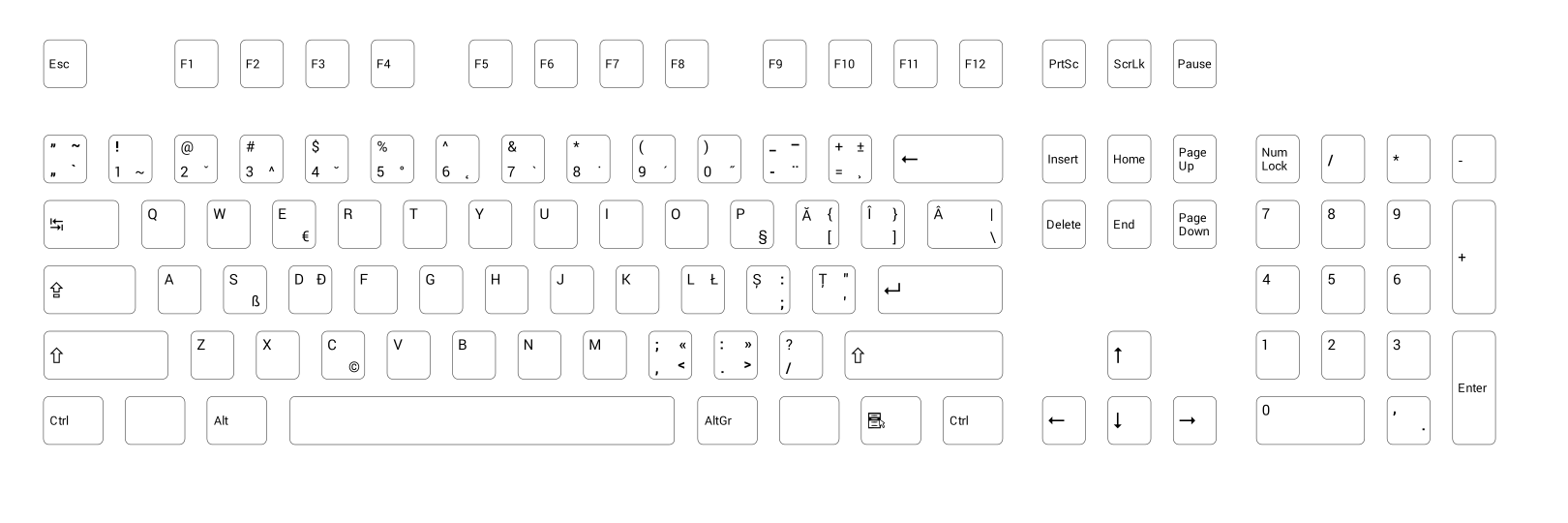
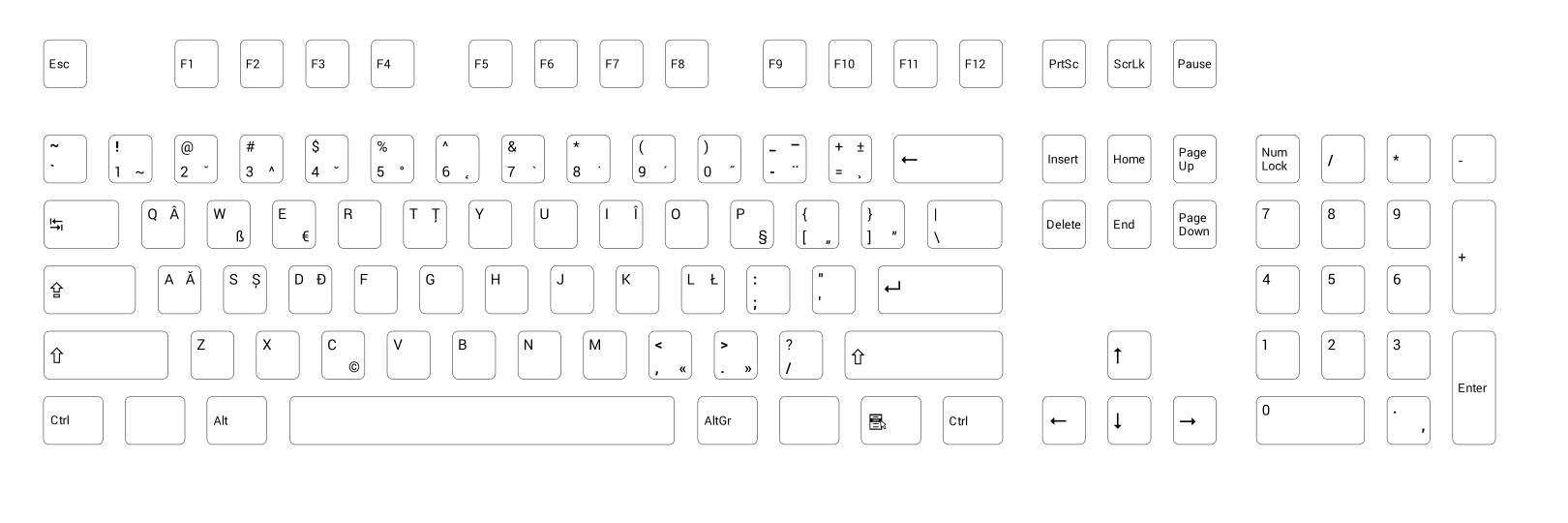
Nu am zis nimic de WASD Keyboards. Ei se ocupă cu producerea de tastaturi mecanice la comandă. Clientul poate configura ce se va desena pe taste, ce culoare are fiecare tastă în parte, ce metodă de inscripționare a simbolurilor pe taste („Laser Etched” sau „Engraved”) și ce opțiuni de a face tastatura mai silențioasă.
Pentru a asculta diferențele de zgomot la diversele tipuri de contact mecanic, respectiv metodele de reducere a zgomotului, putem viziona acest videoclip pus la dispoziție de WASD Keyboards.
WASD Keyboards ne oferă de asemenea posibilitatea de a alege între o tastatură cu 104 taste și una cu 87 taste, diferența fiind dată de lipsa blocului numeric. Eu am ales varianta cu 87 taste deoarece am observat la Das Keyboard că blocul numeric era tot timpul prăfuit, asta pentru că rareori îl foloseam.
Pentru cei obișnuiți cu tasta Enter mare și cu tasta Shift stângă mică se poate alege între o tastatură cu 105 taste și una cu 88 taste. Din păcate nu există șabloane de editat la momentul scrierii acestui articol.
Tastatura mea RO-PRO arată astfel:


Pe spate putem observa niște comutatoare mici, comutatoare care modifică comportamentul unor taste. Aici avem o descriere a fiecărui comutator. De exemplu comutatorul patru dezactivează tastele Windows (tastele de lânga tasta Alt și AltGr, taste fără simbol în poza de mai sus).
Vă propun să faceți un experiment, deschideți un editor de texte (Notepad pe Windows), poziționați toate degetele deasupra tastelor 1, 2, 3, 4, 5, 6, 7, 8, 9, 0 și apoi apăsați-le pe toate deodată! Ce apare afișat pe ecran? Cu tastatura de la laptop la mine nu a apărut nimic, dacă am redus numărul de taste apăsate am reușit într-un final să văd „4321”. Cu tastatura WASD RO-PRO am văzut „1234576890”.
Toate bune și frumoase, dar cât costă? Nota de plată arată astfel:
- Tastatura în sine - 149,99$
- Contacte Cherry Maro - 5$
- Transport - 46,80$
- Taxa vamală (în Germania) - 22€
Prețul este un pic piperat (~170€). Alte tastaturi mecanice de „birou” cu contacte Cherry Maro au următoarele prețuri:
- Das Keyboard Ultimate Model S – 129€
- Filco Majestouch-2 Pro – 169€
- Cherry G80-3000 Professional – 92€
- Leopold FC500R – 99,95€
Tastaturile mecanice de „jucat” cu contacte Cherry Maro au următoarele prețuri:
- Razer BlackWidow Stealth Edition – 99,99€
- CM Storm Quick Fire Pro – 99,95€
- Logitech G710+ Mechanical Gaming Keyboard – 149,99€
- Ducky Shine 3 DK9008 – 149€
Tastaturile de „jucat” vin cu iluminare prin tastă, caracteristică ce le face foarte utile pe întuneric. Aceeași caracteristică o are și tastatura „Code”, tastatură produsă de WASD. Din păcate la momentul actual nu se poate alege iluminarea prin tastă ca opțiune pentru tastaturile WASD la comandă.
WASD Keyboards estimează două săptămâni pentru transport, eu am primit tastatura fix după 14 zile!
Îi rog pe cei care dau comandă la tastaturi WASD Keyboards (varianta cu 87 taste sau 104 taste) RO-PRO (șablonul în format SVG) sau RO-STD (șablonul în format SVG) să adauge un comentariu!
Pentru cei care comandă o tastatură RO-PRO de la WASD Keyboards și nu știu cum să o configureze în Windows 7, respectiv să afle la ce sunt utile tastele „moarte”, le recomand acest tutorial – Tastatura RO-PRO pe Windows 7.
2013-08-02
Thank you Google!
It's time to thank Google again for fixing the Android fonts in regards of the Romanian language (Android Issue 9808).
First time was for fixing the Droid font family and now for fixing the Roboto font family.
The fix came with the commit e68d87e0920133cb8799bc89abb8d1206c3d7750:
This meant downloading a few hounded of megabytes, which in the end produced a "base" directory which was 1.9GB in size :)
Don't use the Google Fonts Roboto page, because there the font is not updated, as you can see from the screen shot below:

For your convenience you can download the whole Android fonts folder from here (12MB zip file)
I've opened the Roboto Thin font in Fontforge and as you can see T comma below is right where it should be:

This would make Android 4.3 the first Android with complete Romanian language support! w00t.
First time was for fixing the Droid font family and now for fixing the Roboto font family.
The fix came with the commit e68d87e0920133cb8799bc89abb8d1206c3d7750:
In order to verify I had to get the fonts from the Android base git repository
git clone https://android.googlesource.com/platform/frameworks/base.gitThis meant downloading a few hounded of megabytes, which in the end produced a "base" directory which was 1.9GB in size :)
Don't use the Google Fonts Roboto page, because there the font is not updated, as you can see from the screen shot below:

For your convenience you can download the whole Android fonts folder from here (12MB zip file)
I've opened the Roboto Thin font in Fontforge and as you can see T comma below is right where it should be:

This would make Android 4.3 the first Android with complete Romanian language support! w00t.
2013-03-16
Drive letters
Everybody knows that Windows has mapped letters for drives and partitions. c:\windows or c:\program files are familiar notions to Windows users.
There is a big probability that you have only two drives on your computer, C: as hard drive and D: as DVD/Blu-Ray drive. The days when one had A: and/or B: drive are long gone. A: and B: were reserved for floppy disk drives. These drive letters can be reused if ones goes to „Administrative Tools -> Computer Management -> Storage -> Disk Management”.
Here is one for you: Why doesn't Windows use A: and B: for USB flash drives? It doesn't do that even if it doesn't have other letters at disposal! This has proven to be a very effective way of disabling USB flash drives from being mounted, as seen below:

The USB flash drive was insterted but Windows couldn't mount it! No error message is being given to the user either. Nothing happens!
Starting with Windows Vista by default one cannot simply create files and directories on drive C:, you either disable the UAC (User Access Control) or comply with this rule.
I used to have my hard disk partitioned as C: for Windows and other programs and D: for my projects / files. But at times I would have less space on D: and I was forced to move data to C: drive. This was a bit annoying.
After installing Windows 8 on a fresh SSD drive I've decided to have only one partition and one fake one. I've substituted a directory for a drive letter. "subst c:\users\cristian\D d:" was the magic line.
In order to change the label of my new D: drive I had to create a registry key (HKEY_LOCAL_MACHINE\SOFTWARE\Microsoft\Windows\CurrentVersion\Explorer\DriveIcons\D\DefaultLabel) and then I had the label "Data" for D: as I used with my Windows 7 system:

Unfortunately Total Commander doesn't know about this trick and it displays the same drive label for D: as it does for C:
Soon I've noticed that my emulated D: drive was visible just for me, it was not usable for programs ran as Administrator. This turned to be a letdown, I had to run "subst c:\users\cristian\D d:" from a cmd.exe shell ran as Administrator. Couldn't be a way to run this script for both users?
Fortunately "Andres" had published on stackoverflow a solution to run a cmd.exe shell script as Administrator. His solution uses a hybrid shell script which is a valid cmd.exe shell script and also a WSH JScript.
Now I had a script which runs "subst c:\users\cristian\D d:" from my user and also from the Administrator user. Cool! I've put this script in the "Start Up" and now I have a fully functional D: drive!
I like this solution. Now when I boot my machine I see UAC prompting me to run this script, which is also a nice way to inform me that my D: drive is mounted.
There is a big probability that you have only two drives on your computer, C: as hard drive and D: as DVD/Blu-Ray drive. The days when one had A: and/or B: drive are long gone. A: and B: were reserved for floppy disk drives. These drive letters can be reused if ones goes to „Administrative Tools -> Computer Management -> Storage -> Disk Management”.
Here is one for you: Why doesn't Windows use A: and B: for USB flash drives? It doesn't do that even if it doesn't have other letters at disposal! This has proven to be a very effective way of disabling USB flash drives from being mounted, as seen below:

The USB flash drive was insterted but Windows couldn't mount it! No error message is being given to the user either. Nothing happens!
Starting with Windows Vista by default one cannot simply create files and directories on drive C:, you either disable the UAC (User Access Control) or comply with this rule.
I used to have my hard disk partitioned as C: for Windows and other programs and D: for my projects / files. But at times I would have less space on D: and I was forced to move data to C: drive. This was a bit annoying.
After installing Windows 8 on a fresh SSD drive I've decided to have only one partition and one fake one. I've substituted a directory for a drive letter. "subst c:\users\cristian\D d:" was the magic line.
In order to change the label of my new D: drive I had to create a registry key (HKEY_LOCAL_MACHINE\SOFTWARE\Microsoft\Windows\CurrentVersion\Explorer\DriveIcons\D\DefaultLabel) and then I had the label "Data" for D: as I used with my Windows 7 system:

Unfortunately Total Commander doesn't know about this trick and it displays the same drive label for D: as it does for C:
Soon I've noticed that my emulated D: drive was visible just for me, it was not usable for programs ran as Administrator. This turned to be a letdown, I had to run "subst c:\users\cristian\D d:" from a cmd.exe shell ran as Administrator. Couldn't be a way to run this script for both users?
Fortunately "Andres" had published on stackoverflow a solution to run a cmd.exe shell script as Administrator. His solution uses a hybrid shell script which is a valid cmd.exe shell script and also a WSH JScript.
Now I had a script which runs "subst c:\users\cristian\D d:" from my user and also from the Administrator user. Cool! I've put this script in the "Start Up" and now I have a fully functional D: drive!
@if (1==1) @if(1==0) @ELSE
@echo off&SETLOCAL ENABLEEXTENSIONS
>nul 2>&1 "%SYSTEMROOT%\system32\cacls.exe" "%SYSTEMROOT%\system32\config\system"||(
    @subst d: %USERPROFILE%\D
    cscript //E:JScript //nologo "%~f0"
    @goto :EOF
)
@subst d: %USERPROFILE%\D
@goto :EOF
@end @ELSE
ShA=new ActiveXObject("Shell.Application")
ShA.ShellExecute("cmd.exe","/c \""+WScript.ScriptFullName+"\"","","runas",5);
@end
I like this solution. Now when I boot my machine I see UAC prompting me to run this script, which is also a nice way to inform me that my D: drive is mounted.
2012-11-27
Aranjamente de tastatură românească
Sau altfel spus: Cum scriu cu diacritice pe Windows?
Toată lumea știe că trebuie să mergi în „Control Panel” și să configurezi tastatura la „Regional Settings”. Acest lucru este foarte adevărat. Aranjamentul de tastatură „Romanian” de pe Windows XP a devenit „Romanian (Legacy)”/„Română (Tradițională)” pe Windows Vista/7/8.
Windows Vista/7/8 vin și cu aranjamente de tastatură conforme cu standardul românesc de tastatură SR-13392:2004, și anume „Română (Standard)”, respectiv „Română (Programatori)”.
Cum rămâne cu standardul românesc de tastatură SR-13392:2004 pentru Windows XP? Pentru Windows XP (și alte versiuni mai vechi) soluția vine de la Cristian Secară. Din păcate soluția oferită necesită urmarea multor pași manuali, pași care par complicați pentru utilizatorul de rând, obișnuit cu pachete de instalare „click, click, click”.
diacritice.ro oferă o soluție asemănătoare aranjamentului „Română (Programatori)”. Din păcate soluția folosește diacriticele cu sedilă și nu implementează toată funcționalitatea oferită de standardul de tastatură, și anume linia de dialog, tastele moarte cu ajutorul cărora putem introduce caracterele altor limbi: üäößéèçô etc.
Procedura de instalare a lui „rops.exe” de pe diacritice.ro este mai simplă decât la secărică.ro, dar tot necesită la final o vizită la „Control Panel”.
Nu se poate ceva și mai simplu, conform cu standardul românesc și cu diacriticele corecte?
Cu ajutorul programului Microsoft Keyboard Layout Creator 1.4 am realizat trei pachete de instalare pentru cele trei aranjamente de tastatură:
Cele două aranjamente conforme standardului românesc SR-13392:2004 sunt recomandate tuturor care acum vor să învețe să scrie cu diacritice. Eu personal folosesc aranjamentul „Română (Programatori)”, sau „Română cu Alt Dreapta”. Pentru cei familiarizați cu aranjamentul moștenit de la Microsoft le recomand aranjamentul „Română (Moștenit)”.
*Aranjamentul „Română (Moștenit)” vine cu următoarele modificări față de aranjamentul „Română (Legacy)” moștenit de la Microsoft:
Am făcut un film de prezentare a instalării aranjamentului „Română (Moștenit)”:
Pentru dezinstalare puteți fie să mergeți în „Control Panel” la „Add-Remove Programs” și de acolo să căutați „Română (Moștenit)”/„Română (Standard)”/„Română (Programatori)”, fie să rulați consecutiv pachetul de instalare.
Trebuie avut grijă doar ca aranjamentul să nu mai fie cel implicit în sistem, adică să instalați un alt aranjament de tastatură înaintea dezinstalării. Altfel mesajul de eroare poate fi foarte surprinzător pe Windows XP:
 Acest articol a fost republicat aici: Aranjamente de tastatură românească.
Toată lumea știe că trebuie să mergi în „Control Panel” și să configurezi tastatura la „Regional Settings”. Acest lucru este foarte adevărat. Aranjamentul de tastatură „Romanian” de pe Windows XP a devenit „Romanian (Legacy)”/„Română (Tradițională)” pe Windows Vista/7/8.

Windows Vista/7/8 vin și cu aranjamente de tastatură conforme cu standardul românesc de tastatură SR-13392:2004, și anume „Română (Standard)”, respectiv „Română (Programatori)”.
Cum rămâne cu standardul românesc de tastatură SR-13392:2004 pentru Windows XP? Pentru Windows XP (și alte versiuni mai vechi) soluția vine de la Cristian Secară. Din păcate soluția oferită necesită urmarea multor pași manuali, pași care par complicați pentru utilizatorul de rând, obișnuit cu pachete de instalare „click, click, click”.
diacritice.ro oferă o soluție asemănătoare aranjamentului „Română (Programatori)”. Din păcate soluția folosește diacriticele cu sedilă și nu implementează toată funcționalitatea oferită de standardul de tastatură, și anume linia de dialog, tastele moarte cu ajutorul cărora putem introduce caracterele altor limbi: üäößéèçô etc.
Procedura de instalare a lui „rops.exe” de pe diacritice.ro este mai simplă decât la secărică.ro, dar tot necesită la final o vizită la „Control Panel”.
Nu se poate ceva și mai simplu, conform cu standardul românesc și cu diacriticele corecte?
Cu ajutorul programului Microsoft Keyboard Layout Creator 1.4 am realizat trei pachete de instalare pentru cele trei aranjamente de tastatură:
- Română (Standard) – aranjamentul „primar” din SR-13392:2004
- Română (Programatori) – aranjamentul „secundar” din SR-13392:2004
- Română (Moștenit)* – aranjamentul „moștenit” de la Microsoft
Cele două aranjamente conforme standardului românesc SR-13392:2004 sunt recomandate tuturor care acum vor să învețe să scrie cu diacritice. Eu personal folosesc aranjamentul „Română (Programatori)”, sau „Română cu Alt Dreapta”. Pentru cei familiarizați cu aranjamentul moștenit de la Microsoft le recomand aranjamentul „Română (Moștenit)”.
*Aranjamentul „Română (Moștenit)” vine cu următoarele modificări față de aranjamentul „Română (Legacy)” moștenit de la Microsoft:
- Ş și ţ cu sedilă sunt înlocuite cu ș și ț cu virgulă
- Ghilimelele „românești” pe prima tastă de pe rândul numeric ([,]), precum în aranjamentul „Română (Standard)”. Din păcate trebuie folosită tasta AltGr + [, respectiv AltGr + Shift + [ pentru a introduce: „”
- Linia de dialog (–) pe AltGr + -
- Tasta moartă ` (7) este activă, tastă cu ajutorul căreia se pot introduce caracterele: à, è, ù, ì, ò, À, È, Ù, Ì, Ò
- Simbolul € pe AltGr + E
Am făcut un film de prezentare a instalării aranjamentului „Română (Moștenit)”:
Windows XP
Windows 7
Pentru dezinstalare puteți fie să mergeți în „Control Panel” la „Add-Remove Programs” și de acolo să căutați „Română (Moștenit)”/„Română (Standard)”/„Română (Programatori)”, fie să rulați consecutiv pachetul de instalare.
Trebuie avut grijă doar ca aranjamentul să nu mai fie cel implicit în sistem, adică să instalați un alt aranjament de tastatură înaintea dezinstalării. Altfel mesajul de eroare poate fi foarte surprinzător pe Windows XP:


2012-11-01
Tastatura Germano-Română pentru Windows 7
De obicei românii stabiliți în Germania folosesc aranjamentul german de tastatură. Un factor important este faptul că toate tastaturile vândute în Germania vin cu acest aranjament.
Limba română este scrisă fără diacritice, deoarece nu există vreo posibilitate de a introduce diacriticele românești.
Cu ajutorul programului Microsoft Keyboard Layout Creator 1.4 am realizat un aranjament Germano-Român (201 KB) care are în plus:
Pentru a ilustra cum funcționează vedeți gif-ul animat de mai jos:
 De aici puteți descărca aranjamentul germano-român de tastatură. Pachetul de instalare (201 KB) suportă Windows 32bit și Windows 64bit și ar trebui să funcționeze pe Windows XP, Vista, 7.
Tips & Tricks
Tastatura laptopului meu Dell nu are lângă tasta AltGr (Alt dreapta) decât tasta Ctrl. Alte laptopuri gen Lenovo vin cu tastaturi care au tasta meniu contextual lângă tasta AltGr, fapt care în practică dă dureri de cap celor care folosesc tasta AltGr pentru a scrie cu diacritice.
Tasta meniu contextual este relativ inutilă deoarece putem folosi combinația Shift+F10 pentru a activa meniul contextual, așa că o vom remapa ca tasta AltGr.
Pentru remapare am folosit programul KeyTweak. Mai jos avem o captură de ecran:

Mult succes în a scrie cu diacritice!
Limba română este scrisă fără diacritice, deoarece nu există vreo posibilitate de a introduce diacriticele românești.
Cu ajutorul programului Microsoft Keyboard Layout Creator 1.4 am realizat un aranjament Germano-Român (201 KB) care are în plus:
- AltGr + A = ă/Ă
- AltGr + S = ș/Ș
- AltGr + T = ț/Ț
- AltGr + I = î/Î
- AltGr + W = â/Â
Pentru a ilustra cum funcționează vedeți gif-ul animat de mai jos:

Tips & Tricks
Tastatura laptopului meu Dell nu are lângă tasta AltGr (Alt dreapta) decât tasta Ctrl. Alte laptopuri gen Lenovo vin cu tastaturi care au tasta meniu contextual lângă tasta AltGr, fapt care în practică dă dureri de cap celor care folosesc tasta AltGr pentru a scrie cu diacritice.
Tasta meniu contextual este relativ inutilă deoarece putem folosi combinația Shift+F10 pentru a activa meniul contextual, așa că o vom remapa ca tasta AltGr.
Pentru remapare am folosit programul KeyTweak. Mai jos avem o captură de ecran:

Mult succes în a scrie cu diacritice!
2012-08-31
Facebook + Unicode ≠ Love
The theme for the last days is the question marks instead of Unicode characters in various software products. In this case Facebook.
Facebook? Have you read this article written by Andrei Alexandrescu?
 If you go to the funny video (in Romanian) page you can see the caption as: „Primul șlagăr care te învață să scrii corect înjurăturile.”. No question marks there!
I'm sure there is an explanation why that happened... but it shouldn't have happened. Nobody said that Unicode is easy!
P.S. It seems Google+ does the same thing:
 I was prepared to congratulate you Google on doing a better job than Facebook...
Facebook? Have you read this article written by Andrei Alexandrescu?
"The Best Programming Advice I Ever Got"
Coming back to question marks. I wanted to post a funny video on Facebook when I've noticed that Facebook gathered as description some undesired question marks:I'm sure there is an explanation why that happened... but it shouldn't have happened. Nobody said that Unicode is easy!
P.S. It seems Google+ does the same thing:
2012-08-30
MSI + Unicode ≠ Love
I was upgrading my Libre Office installation to version 3.6.1 when I've noticed the question marks in the installer UI:

How can this be? Ș and ț (s and t comma below) characters are present in the Microsoft Sans Serif and Tahoma fonts since Windows 2000.
The only explanation is: ANSI installation program. No way! You would think that Windows Installer would be Unicode, but it's not! Michael Kaplan wrote about this weirdness seven years ago: MSI Databases and Unicode?
WiX also states on their help page: „Top-level elements like Product, Module, Patch, and PatchCreation support a Codepage attribute. You can set this to a valid Windows code page by integer like 1252, or by web name like Windows-1252. UTF-7 and UTF-8 are not officially supported because of user interface issues. Unicode is not supported.”
Programs like 7-zip use MSI for x64 target because NSIS installer did not have support for x64. NSIS officially doesn't support Unicode and x64, but there are forks which do (Unicode fork, x64 fork).
I've filed a bug (#54232) for LibreOffice. I guess they will use the old ş and ţ (s and t cedilla) characters to fix this problem.
Windows 95 End of Life was 1st of January 2003, Windows 98, Windows 98 Second Edition, and Windows ME End of Life was 1st of April 2007.
They haven't fixed this problem even though is has been five years since they do not support any ANSI operating system.
How can this be? Ș and ț (s and t comma below) characters are present in the Microsoft Sans Serif and Tahoma fonts since Windows 2000.
The only explanation is: ANSI installation program. No way! You would think that Windows Installer would be Unicode, but it's not! Michael Kaplan wrote about this weirdness seven years ago: MSI Databases and Unicode?
WiX also states on their help page: „Top-level elements like Product, Module, Patch, and PatchCreation support a Codepage attribute. You can set this to a valid Windows code page by integer like 1252, or by web name like Windows-1252. UTF-7 and UTF-8 are not officially supported because of user interface issues. Unicode is not supported.”
Programs like 7-zip use MSI for x64 target because NSIS installer did not have support for x64. NSIS officially doesn't support Unicode and x64, but there are forks which do (Unicode fork, x64 fork).
I've filed a bug (#54232) for LibreOffice. I guess they will use the old ş and ţ (s and t cedilla) characters to fix this problem.
Windows 95 End of Life was 1st of January 2003, Windows 98, Windows 98 Second Edition, and Windows ME End of Life was 1st of April 2007.
They haven't fixed this problem even though is has been five years since they do not support any ANSI operating system.
2012-08-18
Qt Creator Visual C++ keyboard shortcuts
Qt Creator comes with a "MS_Visual_C++.kms" keyboard shortcuts scheme. But this scheme is not based on Visual C++ Professional, but instead of Visual C++ Express.
The two versions Visual C++ Professional and Visual C++ Express do not have the same keyboard shortcuts scheme. You can download the default keyboard scheme for Visual Studio 2010 C++ here.
If you have used Visual C++ Professional with Visual Assist you will also notice that the Visual Assist shortcuts are also missing. Visual Assist default shortcuts can be viewed here.
Visual C++ allows multiple shortcuts for the same command. Unfortunately Qt Creator doesn't allow this and at times I had to choose from multiple shortcuts only one.
Below is a table with the updates to the "MS_Visual_C++.kms" keyboard shortcuts scheme:
Cancel Build should have been Ctrl+Break. I filed this behavior as Qt Creator Bug #4609.
The complete "MS_Visual_C++_Visual_Assist.kms" can be downloaded from here. With these keyboard shortcuts Qt Creator is a able to pose as a very good substitute to Visual C++ and Visual Assist!
The two versions Visual C++ Professional and Visual C++ Express do not have the same keyboard shortcuts scheme. You can download the default keyboard scheme for Visual Studio 2010 C++ here.
If you have used Visual C++ Professional with Visual Assist you will also notice that the Visual Assist shortcuts are also missing. Visual Assist default shortcuts can be viewed here.
Visual C++ allows multiple shortcuts for the same command. Unfortunately Qt Creator doesn't allow this and at times I had to choose from multiple shortcuts only one.
Below is a table with the updates to the "MS_Visual_C++.kms" keyboard shortcuts scheme:
| Command | Label | Shortcut | Old Shortcut |
| Toogle | Toggle Bookmark | Ctrl+F2 | Ctrl+K, Ctrl+K |
| OutputPane.nextitem | Next Item | F4 | F6 |
| OutputPane.previtem | Previous Item | Shift+F4 | Shift+F6 |
| VisualizeWhitespace | Visualize Whitespace | Ctrl+Shift+8 | Ctrl+E, Ctrl+V |
| LowercaseSelection | Lowercase Selection | Ctrl+U | Alt+U |
| UppercaseSelection | Uppercase Selection | Ctrl+Shift+U | Alt+Shift+U |
| Sidebar.Projects | Activate Projects Pane | Ctrl+Alt+L | Alt+X |
| Sidebar.Class View | Activate Class View Pane | Ctrl+Shift+C | |
| AddNewFile | Add New... | Ctrl+Shift+A | |
| AddExistingFiles | Add Existing Files... | Alt+Shift+A | |
| RunToLine | Run to Line | Ctrl+F10 | |
| AttachToLocalProcess | Attach to Running Local Application... | Ctrl+Alt+P | |
| FindUsages | Find Usages | Alt+Shift+F | Ctrl+Shift+U |
| RenameSymbolUnderCursor | Rename Symbol Under Cursor | Alt+Shift+R | Ctrl+Shift+R |
| Methods | Methods and Functions | Alt+Shift+S | |
| Methods in current Document | Methods in Current Document | Alt+M | |
| JumpToDefinition | Follow Symbol Under Cursor | Alt+G | Ctrl+F12 |
| SwitchDeclarationDefintion | Switch Between Method Declaration/Definition | Ctrl+F12 | Ctrl+Shift+F12 |
| SwitchHeaderSource | Switch Header/Source | Alt+O | F4 |
| Files in current project | Files in Current Project | Alt+Shift+O | |
| Files in current project | Files in Current Project | Alt+Shift+O | |
| CancelBuild | Cancel Build | Ctrl+ᡀ� |
Cancel Build should have been Ctrl+Break. I filed this behavior as Qt Creator Bug #4609.
The complete "MS_Visual_C++_Visual_Assist.kms" can be downloaded from here. With these keyboard shortcuts Qt Creator is a able to pose as a very good substitute to Visual C++ and Visual Assist!
Subscribe to:
Posts (Atom)